Children’s needs
Choose a subject, use the tools without reading, ask for help and start again when needed.
Apolo Kids
Professional project
A drawing game where children turn their own picture into a puzzle.
My contribution
I designed the drawing and puzzle interactions, visual help and feedback, and added an eraser after testing with children.
A drawing and puzzle game for Kokoro Kids
Kokoro Kids is an educational game app for children aged three to six. Its catalogue includes more than 250 games across six learning areas: emotions, logic, numbers, communication, creativity and science.
I designed the interaction for Draw Your Puzzle, a game in the logic category. Children draw a picture, turn it into puzzle pieces and put it back together.
The brief was to add a new game that gave children room to make their own choices. Kokoro Kids took part in the LEGO Foundation’s Play for All programme, which supports inclusive play. Using each child’s drawing as the puzzle connected the activity to the programme’s focus on belonging.
Making the interaction clear for young children
Children aged three to six have different language and motor skills. The tools needed to be understandable without reading, and the change from drawing to moving puzzle pieces needed to be clear.
Choose a subject, use the tools without reading, ask for help and start again when needed.
Add a game that combines creative drawing with a logic activity, using the child’s own picture.
What children understood during testing
We tested Draw Your Puzzle with children in person, observing how they used the drawing tools and moved through the game. What we learned helped us refine the interaction, including adding an eraser so children could start again.


Children did not realise they could paint the canvas white with a brush to start again. The action was available, but its purpose was not clear.
I added an eraser instead of relying on painting over the canvas. It gave children a recognisable way to start again.
In later tests, children understood that pressing the eraser would let them start again. A familiar drawing tool made the action easier to understand.
Drawing tools, help and puzzle feedback
Colours, patterns and stickers sit on the left. Drawing tools sit on the right. The classroom desk theme gives the activity a familiar setting.
A green outline shows the selected option, supported by a sound effect. Children can see which material or tool is active.
The help button shows a hand demonstrating the current activity, with short instructions.

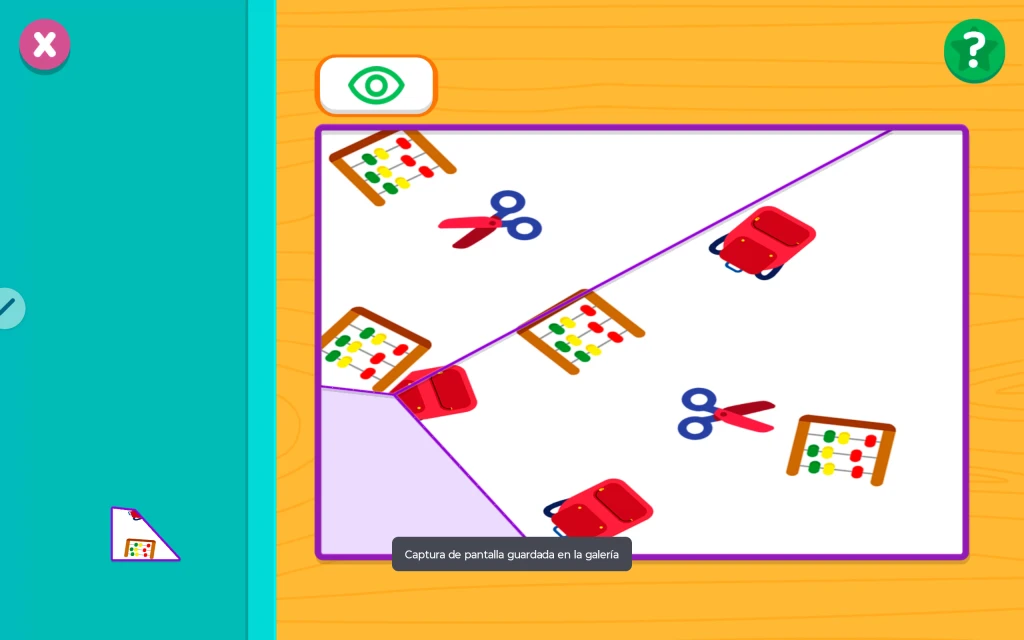
A piece snaps into position with star particles and a positive sound effect.
A neutral sound plays and the piece returns to the panel on the left, ready for another attempt.
The eye button previews the complete picture, helping children remember where each piece belongs.
Drawing, assembling and completing the puzzle
Children choose a pencil, brush, pattern or sticker and create their picture on the canvas. They can change the selected colour or material as they draw.
The top-right help button demonstrates drawing with a hand children can imitate. When they are ready, the green thumbs-up button at the top centre finishes the drawing and starts the transition to the puzzle.
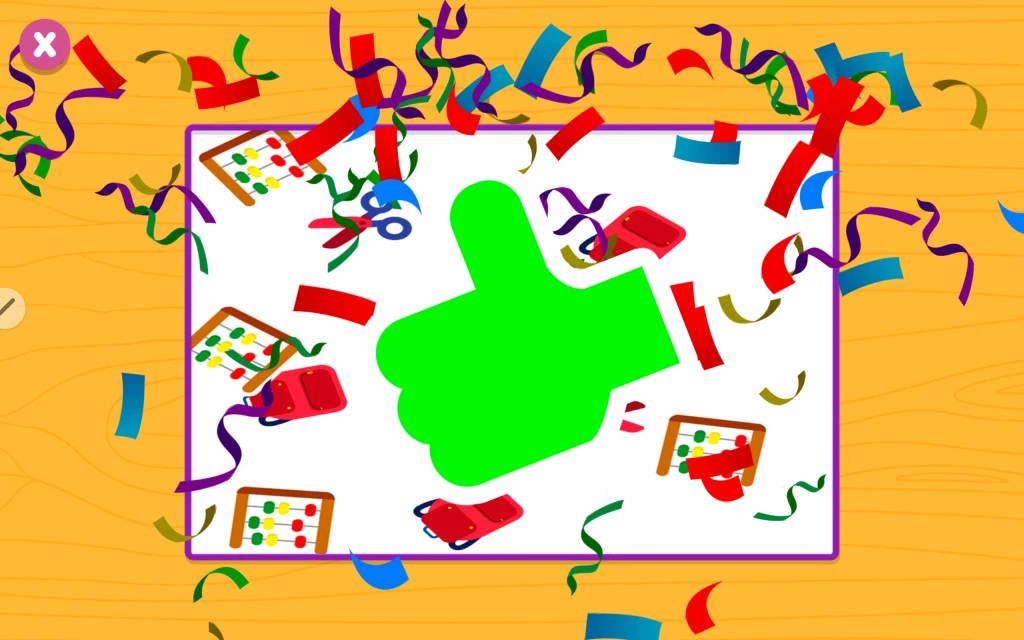
The drawing is divided into pieces. Children drag them from the panel on the left into the frame on the right. The help button demonstrates the puzzle gesture, while the eye button shows the complete drawing as a reference. When the puzzle is complete, the lines between the pieces disappear. A voice congratulates the child, with applause, confetti and a green thumbs-up.